

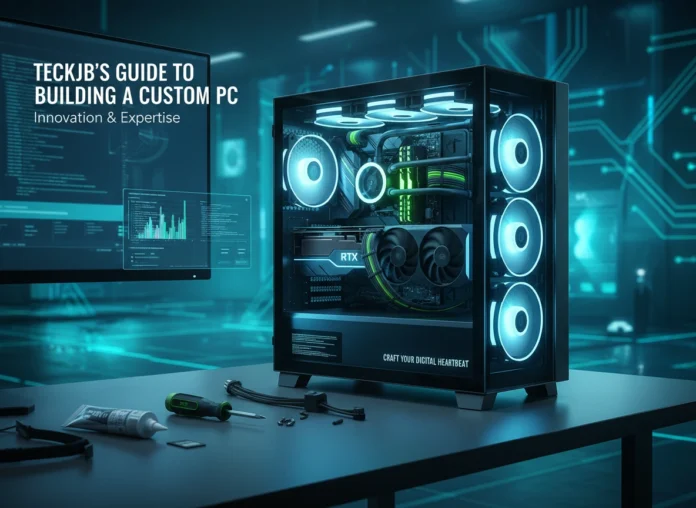


Building your own computer can seem like a complex task reserved for tech wizards. However, with the right guidance, it is an accessible and rewarding project for anyone. Constructing your own PC gives you complete control over performance, aesthetics, and budget. This guide will walk you through the entire process, from understanding the benefits to selecting components and assembling your machine. We will demystify the process and empower you to build a computer perfectly tailored to your needs.
You will learn about the essential components that make up a PC, how to choose the right parts for your specific goals, and the step-by-step assembly process. We will also cover common pitfalls to help you avoid costly errors. By the end, you will have the knowledge and confidence to build your own custom PC.
Why Build a Custom PC?
Off-the-shelf computers offer convenience, but they often come with compromises. Building your own PC provides several distinct advantages that are hard to ignore.
First and foremost is performance. You get to select every single component, ensuring that the final product is optimized for your primary use case, whether that’s high-end gaming, video editing, or professional software development. You are not stuck with a pre-configured system that might have a powerful processor but a weak graphics card.
Customization is another major benefit. From the color of the case to the glow of RGB lighting, you can personalize your computer’s appearance to match your style. This level of control extends to the internal components, allowing you to create a truly unique machine.
Finally, building a PC can be more cost-effective. While the initial investment might seem high, you are paying for exactly what you need without the markups associated with pre-built systems. Moreover, the ability to upgrade individual components over time means your PC can evolve with your needs and the latest technology, extending its lifespan and providing better long-term value.
The Essential Components of a PC
Every personal computer, regardless of its purpose, is built from a core set of components. Understanding the role of each part is the first step toward making informed decisions for your build.
Central Processing Unit (CPU)
The CPU is the brain of your computer. It performs the calculations and executes the instructions that allow your software to run. The two main manufacturers are Intel and AMD. Your choice will influence your motherboard selection, as CPUs are only compatible with specific sockets.
Graphics Processing Unit (GPU)
The GPU, or graphics card, is responsible for rendering images, video, and animations and displaying them on your monitor. For gaming, graphic design, and video editing, the GPU is arguably the most important component. Key players in this space are NVIDIA and AMD.
Motherboard
The motherboard is the central hub that connects all your components. It houses the CPU, RAM, and expansion cards and has ports for your storage drives and peripherals. The motherboard’s “chipset” and “socket type” must be compatible with your chosen CPU.
Random Access Memory (RAM)
RAM is your computer’s short-term memory. It stores data that your CPU needs to access quickly, allowing you to multitask and run applications smoothly. For most users, 16GB is a great starting point, while power users and gamers may opt for 32GB or more.
Storage
Storage is your computer’s long-term memory. There are two main types: Hard Disk Drives (HDDs) and Solid-State Drives (SSDs). HDDs offer large capacities for a lower cost, while SSDs are significantly faster, reducing boot times and application loading. Many builders use a combination of a smaller SSD for the operating system and a larger HDD for files.
Power Supply Unit (PSU)
The PSU converts AC power from your wall outlet into the DC power your components need. It is crucial to choose a reliable PSU with enough wattage to power your entire system, with some headroom for future upgrades.
Case
The case protects all your internal components. Cases come in various sizes (e.g., Full Tower, Mid Tower, Mini-ITX) and styles. Your choice will depend on the size of your components, your cooling needs, and your personal aesthetic preferences.
Cooling System
High-performance components generate heat, and effective cooling is essential for stability and longevity. This can be achieved with air cooling (fans and heat sinks) or liquid cooling (all-in-one or custom loops). Your CPU will almost always require a dedicated cooler.
Choosing Components for Your Needs
With the basics covered, how do you select the right parts? The key is to define your primary use case and budget.
- For the Gamer: Prioritize the GPU, as it has the biggest impact on frame rates and visual quality. Pair it with a strong CPU that won’t create a bottleneck. Fast RAM and an NVMe SSD for quick game loading times are also highly recommended.
- For the Content Creator: A CPU with a high core count is vital for tasks like video rendering and 3D modeling. Ample RAM (32GB or more) is also critical for handling large files and complex timelines. A powerful GPU is important, but the CPU often takes precedence.
- For the Budget Builder: Focus on value. Look for last-generation components that still offer excellent performance. An AMD Ryzen CPU with integrated graphics can be a great starting point, allowing you to add a dedicated GPU later. Prioritize an SSD for your boot drive, even if it’s a smaller one.
A Step-by-Step Assembly Guide
Now for the exciting part: putting it all together. Before you begin, ensure you are working in a clean, well-lit space and have a Phillips head screwdriver. It is also good practice to ground yourself periodically by touching a metal object to prevent static discharge.
- Prepare the Motherboard: Install the CPU by lifting the retention arm, aligning the processor correctly (look for the triangle marker), and lowering the arm back down. Next, install the RAM sticks by opening the clips, aligning the notch on the stick with the slot, and pressing down firmly until the clips lock into place. If you have an M.2 SSD, install it now.
- Mount the Motherboard: First, install the motherboard’s I/O shield into the back of the case. Then, screw the motherboard standoffs into the case in the correct locations. Carefully place the motherboard onto the standoffs and secure it with screws.
- Install the Power Supply: Mount the PSU in the case, typically at the bottom or top, and secure it with screws. Run the main power cables through the case’s cable management cutouts toward the motherboard.
- Install the GPU: Open the PCIe slot cover on the back of your case that corresponds to the top-most long slot on your motherboard. Open the clip on the PCIe slot, align the graphics card, and press it firmly into the slot until it clicks. Secure it to the case with screws.
- Install Storage Drives: Mount any 2.5-inch or 3.5-inch SSDs or HDDs into the designated drive bays in your case.
- Connect the Cables: This is often the most intricate part. Connect the 24-pin main power connector and the 8-pin CPU power connector from the PSU to the motherboard. Connect the PCIe power cables to your GPU if required. Connect your storage drives to the motherboard using SATA data cables and to the PSU using SATA power cables.
- Connect Front Panel Connectors: Connect the small cables from the case’s front panel (power button, USB ports, audio jacks) to the corresponding pins on the motherboard. Your motherboard manual is essential for this step.
- Cable Management: Take time to route and tie down your cables neatly. Good cable management not only looks better but also improves airflow within the case.
- Final Check and First Boot: Close up the case panels. Plug in your monitor, keyboard, mouse, and power cord. Turn on the PC. If all goes well, you should see the manufacturer’s logo and be able to enter the BIOS/UEFI. From there, you can proceed to install your operating system.
Common Mistakes to Avoid
Building a PC is a learning experience, but you can save time and frustration by avoiding these common errors.
- Forgetting the I/O Shield: It is a simple piece of metal, but incredibly frustrating to install after the motherboard is already mounted. Install it first.
- Mismatched Components: Always double-check CPU and motherboard compatibility. Use websites like PCPartPicker to automatically check for compatibility issues.
- Applying Too Much Thermal Paste: You only need a pea-sized amount of thermal paste on the CPU before installing the cooler. Too much can make a mess and reduce effectiveness.
- Ignoring Cable Management: A “rat’s nest” of cables can obstruct airflow, leading to higher temperatures and potentially reduced component lifespan.
- Buying an Inadequate Power Supply: Skimping on the PSU is a false economy. A poor-quality unit can be unstable and even damage your other components.
Your Custom PC Journey Starts Now
Building your own PC is more than just assembling parts; it’s about creating a tool that is perfectly suited to you. The process gives you a deeper understanding of the technology you use every day and leaves you with a final product you can be truly proud of. The satisfaction of pressing the power button for the first time and seeing your creation come to life is unmatched.
Do not be intimidated. With careful research and a methodical approach, you are more than capable of building a fantastic machine. Use this guide as your foundation, take your time, and enjoy the process. Your ideal custom PC is waiting to be built.
Please visit this website for more info.